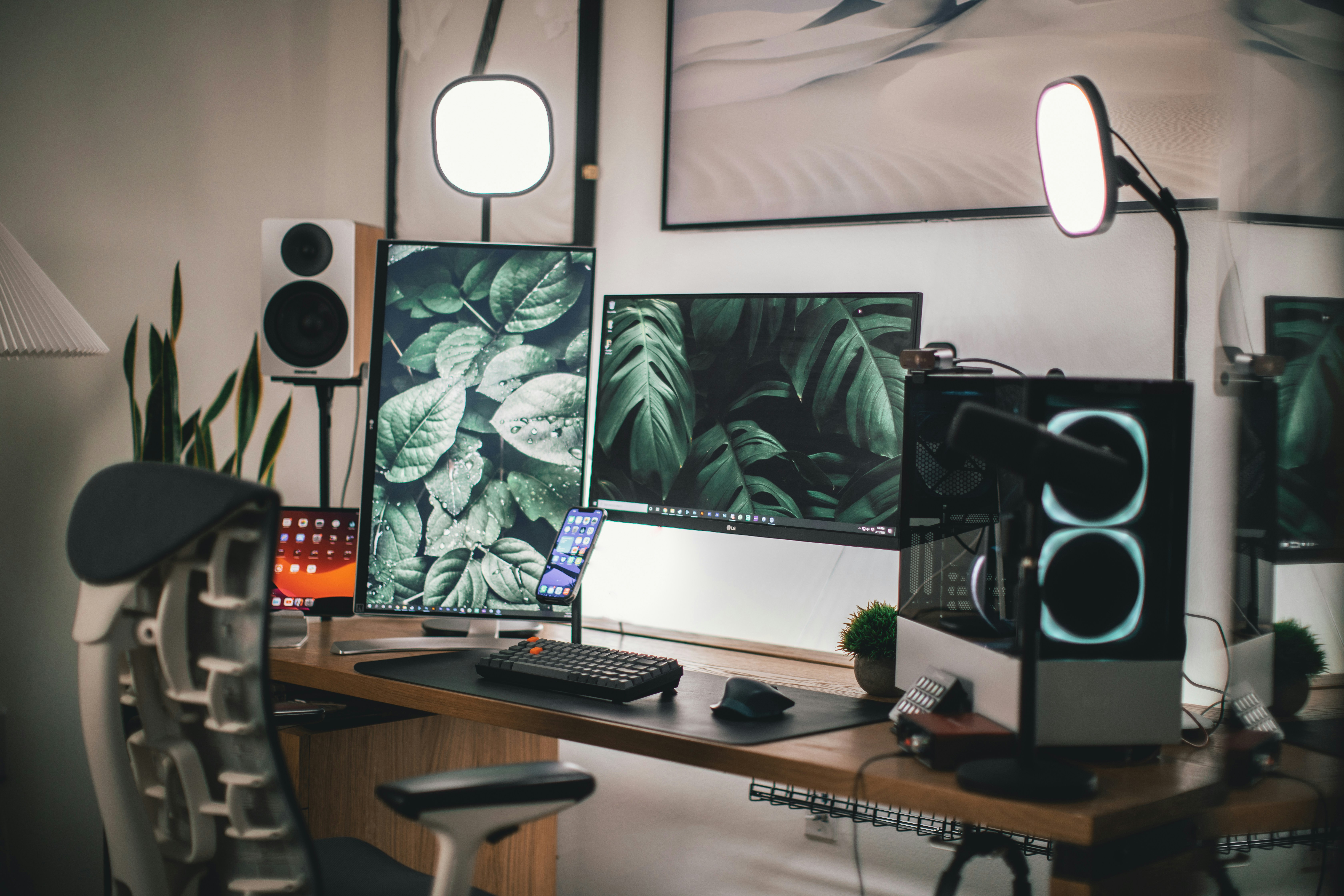
Le bureau a domicile est passe d’un expedient pandemique temporaire a un element permanent de la vie moderne. Pour des millions de personnes, l’endroit ou elles passent huit heures par jour, cinq jours par semaine, n’est plus un box d’entreprise — c’est un coin du salon, une chambre d’amis convertie ou un bureau coince contre le mur de la chambre. Pourtant, la plupart des bureaux a domicile sont encore assembles a la hate avec ce qui etait disponible : une chaise de cuisine, un ordinateur portable sur une table basse, un ecran de 2018. L’eclairage est celui qui passe par la fenetre ou vient du plafonnier. L’ergonomie est une pensee apres coup.
Un bureau a domicile bien concu est l’un des investissements au meilleur rendement que vous puissiez faire — pas seulement en productivite, mais en confort physique sur des milliers d’heures de travail. Voici comment construire un espace de travail qui soutient votre corps, votre concentration et — oui — qui est agreable a regarder.
Le bureau
Le bureau est la fondation. Tout le reste se construit dessus. Un mauvais bureau est trop haut ou trop bas, forcant vos epaules a remonter ou vos poignets a se plier dans un angle inconfortable. Un bon bureau est a la bonne hauteur pour votre corps et assez grand pour votre travail.
Bureau assis : La hauteur de bureau standard (73-75 cm) est trop haute pour la plupart des gens. Si vous mesurez moins d’environ 175 cm, un bureau standard forcera vos epaules vers le haut et vos poignets en extension. Vos coudes devraient etre a environ 90 degres avec vos avant-bras paralleles au sol. Si votre bureau n’est pas a la bonne hauteur, un plateau de clavier monte sous le bureau peut abaisser votre surface de frappe a la position correcte.
Bureau assis-debout : La possibilite d’alterner entre position assise et debout tout au long de la journee est un vrai benefice — non pas parce que rester debout brule plus de calories (la difference est negligeable), mais parce que cela change votre posture et sollicite differents groupes musculaires. L’objectif n’est pas de rester debout toute la journee (cela cree ses propres problemes). C’est de changer de position toutes les 45-60 minutes.
Recommandations. Budget : IKEA Uppspel (349 euros) — un bureau assis-debout motorise solide a une fraction du prix des marques premium. Milieu de gamme : Fully Jarvis (550-700 euros) — le juste milieu pour la plupart des gens. Premium : Uplift V2 (600-900 euros) — le bureau debout le plus stable que nous ayons teste. Materiau du plateau : Le bois (massif ou placage) est plus chaud et plus agreable au toucher que le stratifie.
La chaise
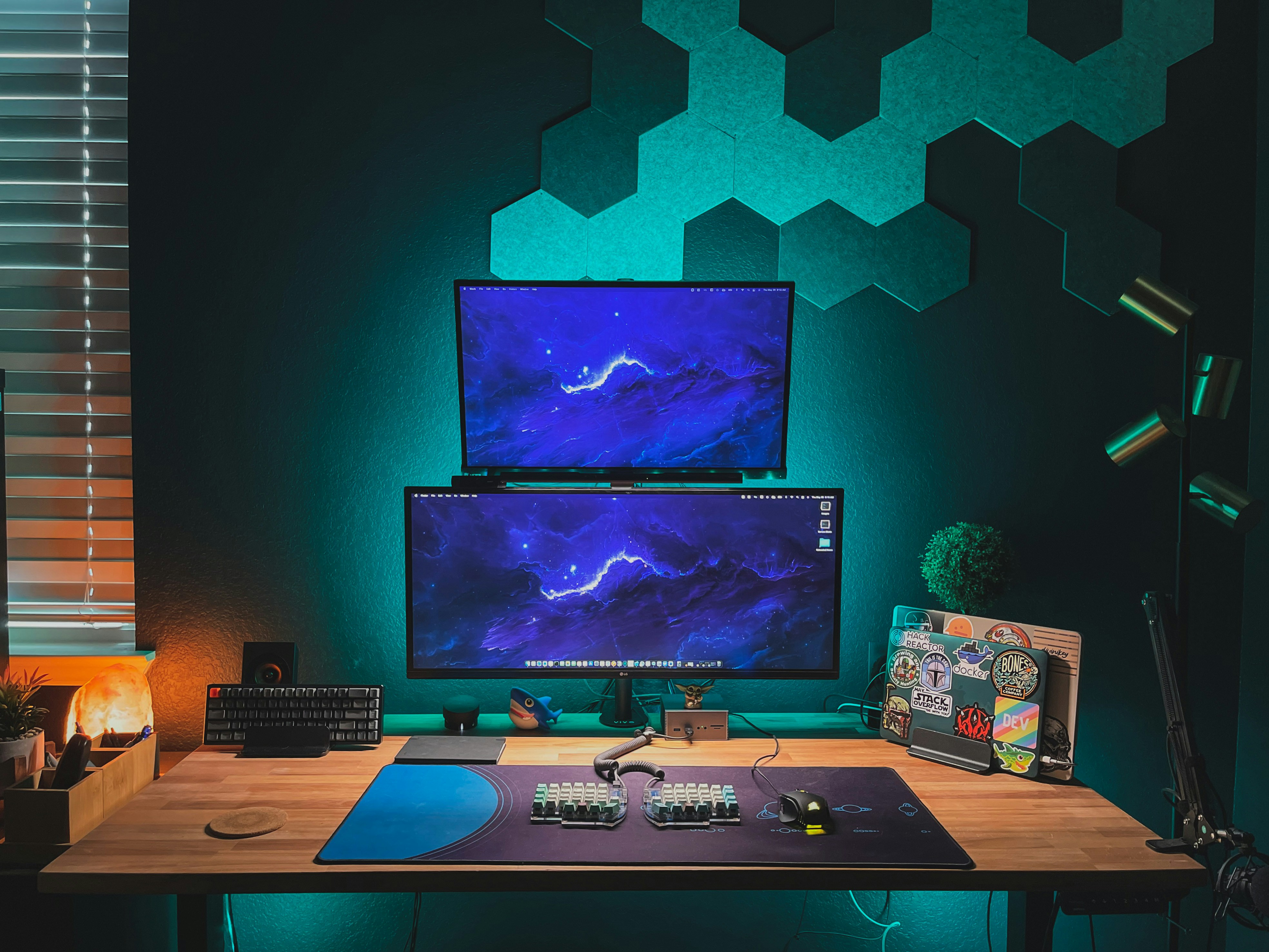
C’est ici que vous devriez depenser le plus d’argent dans votre bureau a domicile. Vous passerez des milliers d’heures dans cette chaise. La difference de cout entre une bonne chaise et une excellente, amortie sur des annees d’utilisation, se compte en centimes par heure. Ne faites pas d’economies ici.
Ce qu’il faut rechercher : Une profondeur d’assise reglable, un soutien lombaire reglable (hauteur et profondeur), des accoudoirs reglables (hauteur, largeur et angle), un dossier en mesh ou tissu (respire mieux que le cuir ou le vinyle).
Recommandations. Herman Miller Aeron (1 395-1 800 euros) : la reference absolue pour les chaises de bureau. En production continue depuis 1994. Achetez d’occasion/remis a neuf pour 500-700 euros. Steelcase Leap V2 (1 200 euros) : le principal rival de l’Aeron, avec un siege rembourre traditionnel plutot que du mesh. Budget : Sihoo M57 (200 euros) ou Branch Ergonomic Chair (329 euros).
L’ecran
Votre configuration d’ecran affecte directement votre posture. La regle : le haut de votre ecran doit etre au niveau des yeux ou legerement en dessous. Un grand ecran 4K (27-32 pouces) vaut mieux que deux ecrans plus petits. Recommandations : Dell UltraSharp U2723QE (27 pouces 4K, 550 euros), Apple Studio Display (27 pouces 5K, 1 599 euros) pour les utilisateurs Mac, Dell S2722QC (27 pouces 4K, 310 euros) pour le budget.
Clavier et souris
Un clavier et une souris externes, associes a un support pour portable, resolvent le probleme ergonomique fondamental du travail sur portable. Recommandations clavier : Apple Magic Keyboard avec Touch ID (149-179 euros), Logitech MX Keys Mini (99 euros) pour le multi-appareils, Keychron Q1 Pro (199 euros) pour les amateurs de mecanique. Souris : Logitech MX Master 3S (99 euros), la reference pour la productivite.
Eclairage
Lumiere naturelle perpendiculaire a la fenetre. Lampe de bureau : BenQ ScreenBar (109 euros). Bande LED derriere l’ecran pour reduire la fatigue oculaire. Plafonnier sur variateur. Temperature de couleur : 2700-3000K pour le confort.
Gestion des cables et finitions
Un plateau a cables sous le bureau, des gaines pour les cables visibles, un bras pour ecran avec cheminement de cables integre. Ajoutez une plante, de l’art au mur, une horloge analogique et un bon systeme audio. Et surtout, un rituel de fin de journee pour fermer l’espace.
La chaise en detail
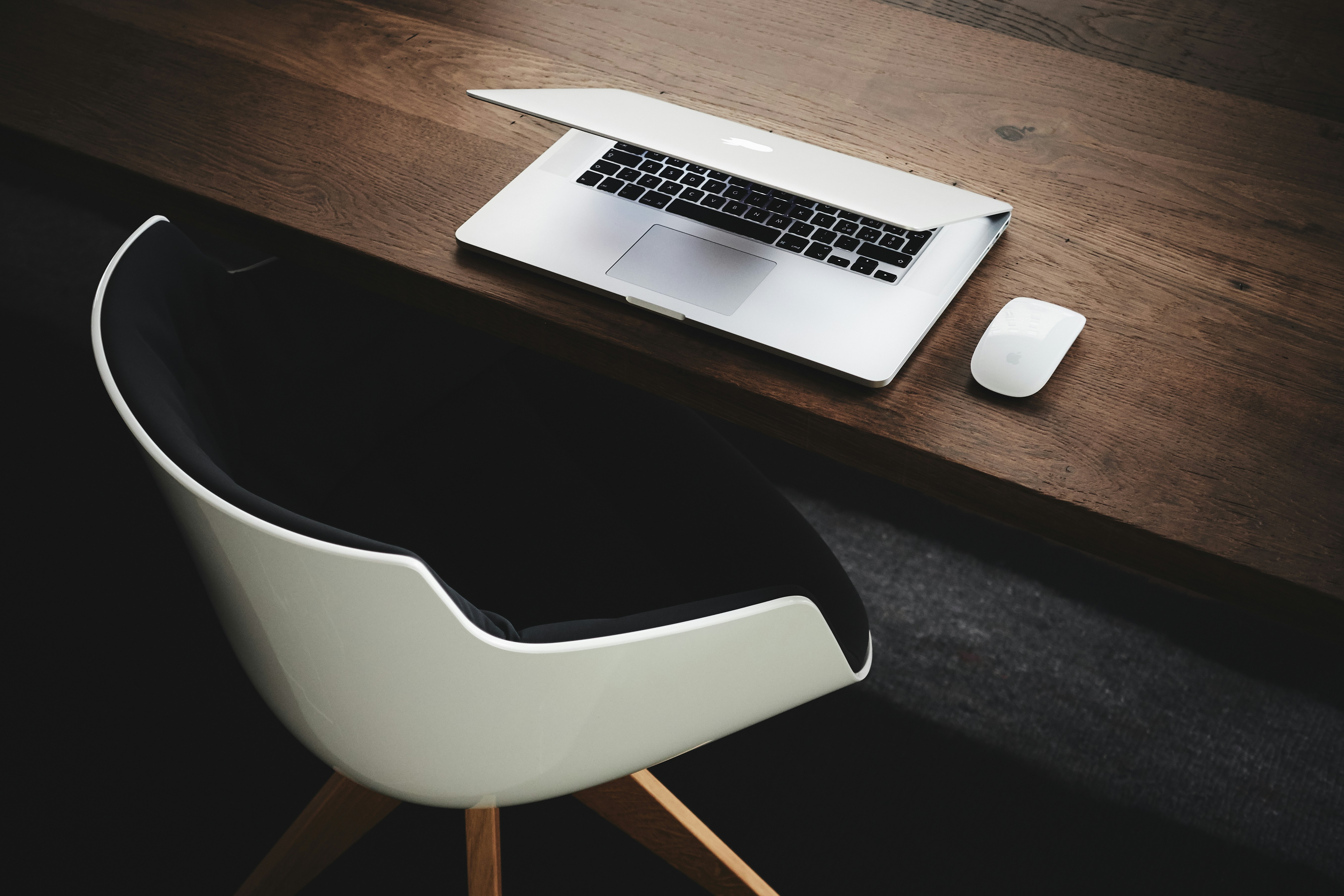
C’est ici que vous devriez depenser le plus d’argent. Vous passerez des milliers d’heures dans cette chaise. La difference de cout entre une bonne chaise et une excellente, amortie sur des annees d’utilisation, se compte en centimes par heure. Ne faites pas d’economies ici. Ce qu’il faut rechercher : une profondeur d’assise reglable (vos cuisses doivent etre entierement soutenues avec environ 5 cm entre l’arriere des genoux et le bord du siege), un soutien lombaire reglable en hauteur et profondeur, des accoudoirs reglables en hauteur et largeur, un dossier en mesh ou tissu qui respire mieux que le cuir.
Recommandations : Herman Miller Aeron (1 395-1 800 euros) est la reference absolue — en production continue depuis 1994, incroyablement durable (plus de 15 ans d’utilisation quotidienne), disponible en trois tailles. Achetez d’occasion pour 500-700 euros. Steelcase Leap V2 (1 200 euros) est le principal rival avec un siege rembourre traditionnel. Budget : Sihoo M57 (200 euros) ou Branch Ergonomic Chair (329 euros) offrent la reglabilite essentielle.
L’ecran en detail
Un grand ecran 4K de 27-32 pouces vaut mieux que deux ecrans plus petits pour la plupart des gens. Un seul grand ecran elimine le cadre au centre de votre champ de vision et vous permet de centrer votre travail principal directement devant vous. Recommandations : Dell UltraSharp U2723QE (27 pouces 4K, 550 euros) est la reference pour la productivite avec des couleurs precises et un hub USB-C integre. Apple Studio Display (27 pouces 5K, 1 599 euros) pour les utilisateurs Mac. Budget : Dell S2722QC (27 pouces 4K, 310 euros).
Clavier et souris en detail
Un clavier et une souris externes, associes a un support pour portable, resolvent le probleme ergonomique fondamental du travail sur portable. Ils transforment egalement la sensation de travailler — un bon clavier est l’un des grands plaisirs sous-estimes du travail de bureau. Recommandations clavier : Apple Magic Keyboard avec Touch ID (149-179 euros) pour Mac, Logitech MX Keys Mini (99 euros) pour le multi-appareils — le meilleur pour ceux qui passent d’un appareil a l’autre, Keychron Q1 Pro (199 euros) pour les amateurs de mecanique. Souris : Logitech MX Master 3S (99 euros), la reference pour la productivite avec une forme ergonomique qui soutient toute la main.
Eclairage en detail
L’eclairage de bureau qui est dur, scintillant ou tamise n’est pas seulement desagreable — il provoque une fatigue oculaire, des maux de tete et de la fatigue qui s’accumulent au fil de la journee de travail. Lumiere naturelle : positionnez votre bureau perpendiculairement a une fenetre, pas face a elle (reflets sur l’ecran) ni dos a elle. Lumiere de tache : une lampe de bureau reglable avec une LED chaude a neutre (3000-4000K). La BenQ ScreenBar (109 euros) se monte sur le dessus de votre ecran et eclaire votre bureau sans projeter de lumiere sur l’ecran. Lumiere ambiante : un plafonnier sur variateur. Lumiere de bias : une bande LED derriere l’ecran, reglee sur un blanc chaud, reduit le contraste entre l’ecran lumineux et le mur sombre derriere.
Gestion des cables
Les cables visibles donnent un aspect chaotique meme a la configuration la plus chere. Un plateau a cables monte sous le bureau maintient la multiprise et tout le mou des cables hors du sol — c’est le geste de gestion des cables le plus impactant. Des gaines ou du ruban en spirale pour les cables qui doivent aller du bureau au mur. Un bras pour ecran avec cheminement de cables integre libere tout l’espace sous l’ecran.
Ce qui en fait un chez-soi
La difference entre un bureau a domicile et un box d’entreprise n’est pas seulement l’emplacement — c’est la sensation. Une plante (snake plant ou ZZ — elles tolerent la lumiere faible et la negligence). Quelque chose d’analogique : un carnet et un stylo, un calendrier physique. Quelque chose de personnel : de l’art au mur, une photo, un petit objet qui a du sens. Un bon systeme audio : un petit haut-parleur Bluetooth ou un casque confortable. Et surtout, un rituel de fin de journee pour fermer physiquement l’espace — eteignez l’ordinateur, debarrassez le bureau, eteignez la lampe de travail.
Le cout total
Un bureau a domicile complet construit autour de ces recommandations varie d’environ 1 500 euros (choix budget) a plus de 5 000 euros (premium). Si cela semble beaucoup, considerer ceci : si vous travaillez a domicile, vous passez environ 2 000 heures par an dans cet espace. Sur cinq ans, une installation a 3 000 euros coute 0,30 euro par heure. Le benefice ergonomique vaut bien plus que cela.