Entrer dans un magasin ou parcourir des listes d’ordinateurs portables en ligne est un exercice de surcharge cognitive. Des noms de processeurs qui ressemblent a des codes alphanumeriques. Des specifications d’affichage qui necessiteraient un diplome de physique pour etre analysees. Des affirmations marketing sur l’autonomie qui ne correspondent jamais a la realite. Des prix allant de 300 a 3 000 euros pour des machines qui ressemblent toutes au meme rectangle argente fin.
La bonne nouvelle est que pour la plupart des gens, choisir un ordinateur portable en 2026 est plus simple qu’il n’y parait. Le marche a converge autour de quelques categories distinctes, et faire correspondre une categorie a vos besoins reels elimine 90% du bruit. Ce guide se concentre sur ce qui compte — pas les specifications pour elles-memes, mais ce que vous remarquerez reellement dans l’usage quotidien.
D’abord, soyez honnete sur ce que vous faites reellement
Avant de regarder un seul ordinateur portable, notez ce pour quoi vous utilisez reellement un ordinateur. Pas ce a quoi vous aspirez. Soyez precis : navigation web, emails, edition de documents, appels video, streaming video, retouche photo legere, programmation, travail de conception, montage video, jeux. Les besoins informatiques reels de la plupart des gens se situent carrement dans la premiere moitie de cette liste.
L’erreur d’achat la plus courante est le sur-achat — depenser plus de 1 500 euros pour une machine avec des specifications requises pour le montage video ou les jeux, puis l’utiliser exclusivement pour la navigation web et Google Docs. La deuxieme erreur est le sous-achat — acheter la machine la moins chere disponible et decouvrir qu’elle est frustrante de lenteur pour le multitache de base en moins d’un an.
Les categories
L’ordinateur portable quotidien (400-700 euros)
Pour qui : Navigation web, emails, documents, feuilles de calcul, appels video, streaming. C’est ce que 70% des gens font reellement avec un ordinateur. Vous avez besoin d’un processeur Intel Core i5 ou AMD Ryzen 5, 8-16 Go de RAM, un SSD de 256-512 Go et un ecran Full HD (1920x1080) de 13-15 pouces. Ces specifications gerent toutes les taches quotidiennes de maniere fluide et resteront performantes pendant 3 a 5 ans. Vous n’avez pas besoin d’une carte graphique dediee, de 32 Go de RAM, d’un ecran 4K ou du processeur de derniere generation.
Recommandations : Acer Aspire 5 (450-600 euros), Lenovo IdeaPad 5 (500-650 euros), ASUS Vivobook (450-700 euros).
L’ultrabook premium (900-1 500 euros)
Pour qui : Les personnes qui utilisent leur portable toute la journee, tous les jours, et veulent une meilleure experience — meilleur ecran, meilleur clavier, meilleure qualite de fabrication, plus longue autonomie. Vous avez besoin d’un processeur Intel Core Ultra ou AMD Ryzen 7, 16 Go de RAM, un SSD de 512 Go-1 To et un ecran haute resolution. Le supplement de prix dans cette categorie achete un meilleur ecran, un meilleur clavier, un poids plus leger et une plus longue autonomie — pas necessairement plus de puissance de traitement.
Recommandations : MacBook Air 15 pouces M4 (1 099-1 499 euros), Dell XPS 14 (1 100-1 400 euros), Lenovo Yoga Slim 7x (900-1 200 euros).
La station de travail creative (1 500-2 500 euros)
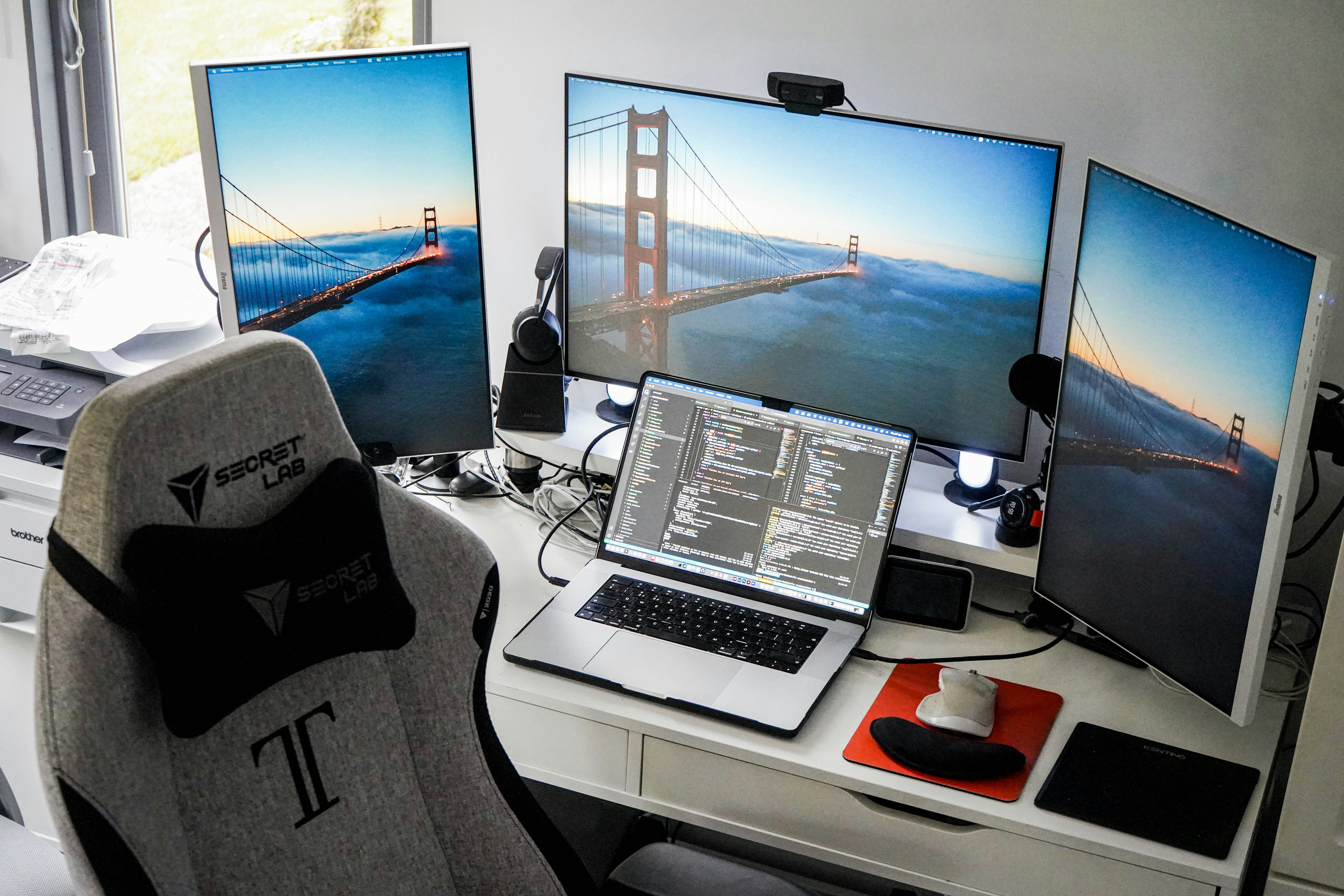
Pour qui : Monteurs video, concepteurs 3D, developpeurs logiciels travaillant avec de grandes bases de code, data scientists et photographes serieux. Vous avez besoin d’un processeur haute performance, 32-64 Go de RAM, un SSD de 1 To ou plus et un ecran haute resolution avec des couleurs precises.
Recommandations : MacBook Pro 16 pouces M4 Pro/Max (2 399 euros et plus), Dell XPS 16 (1 800-2 500 euros), ASUS ProArt P16 (1 600-2 200 euros).
L’ordinateur portable etudiant budget (250-400 euros)
Pour qui : Les etudiants qui ont besoin d’une machine pour la prise de notes, la recherche, les dissertations et les travaux de cours de base. Vous avez besoin d’un Intel Core i3 ou AMD Ryzen 3, 8 Go de RAM (non negociable — n’achetez pas 4 Go en 2026), un SSD de 128-256 Go et un ecran de 13-14 pouces. Evitez les Chromebooks pour la plupart des etudiants, sauf si vous etes certain que votre programme ne necessite que l’acces web.
Recommandations : Lenovo IdeaPad 3 (280-350 euros), Acer Aspire 3 (250-350 euros).
Les specifications qui comptent vraiment
RAM : ne faites pas d’economies ici. 8 Go est le minimum absolu en 2026, 16 Go est le juste milieu. N’achetez jamais 4 Go. Stockage : SSD obligatoire. 256 Go est le minimum pratique. Ecran : Full HD minimum, IPS pour les angles de vision. Autonomie : Attendez-vous a environ 70% de l’autonomie annoncee en usage reel. 8 heures et plus d’autonomie reelle est l’ideal. Ports : Au minimum deux USB-C, un USB-A et une prise casque.
Le choix du systeme d’exploitation
macOS est le plus poli avec la meilleure integration telephone. Windows est le plus compatible — pratiquement tous les logiciels fonctionnent dessus. ChromeOS est le plus simple et le plus abordable. Le meilleur portable est celui qui correspond a vos besoins reels, achete quand vous en avez besoin, a un prix que vous pouvez confortablement vous permettre.
Les specifications en detail
RAM : La RAM est l’endroit ou votre ordinateur conserve tout ce sur quoi il travaille actuellement. Plus de RAM signifie que vous pouvez avoir plus d’applications et d’onglets de navigateur ouverts simultanement sans ralentissement. En 2026, 8 Go est le minimum absolu ; 16 Go est le juste milieu pour la plupart des utilisateurs ; 32 Go et plus est pour les professionnels creatifs et les developpeurs. N’achetez jamais un portable avec 4 Go de RAM. Il semblera lent en quelques mois. C’est la specification ou rogner a l’impact negatif le plus immediat sur l’experience quotidienne.
Stockage : Un disque SSD est plus rapide, plus silencieux, plus durable et plus econome en energie qu’un disque dur traditionnel. Un SSD est le facteur le plus important dans la sensation de rapidite d’un ordinateur en usage quotidien. 256 Go est le minimum pratique — Windows et macOS prennent chacun 30-50 Go, et les applications ajoutent 50-100 Go supplementaires. Si vous stockez des fichiers video volumineux ou des bibliotheques de photos etendues, optez pour 512 Go ou 1 To.
Ecran : 1920x1080 (Full HD) est la resolution minimale acceptable. 2560x1600 ou plus est nettement plus net et vaut la mise a niveau pour quiconque lit ou ecrit beaucoup sur son portable. La 4K (3840x2160) sur un portable est largement inutile — elle consomme beaucoup d’autonomie pour une amelioration de nettete a peine perceptible sur un ecran de 14 pouces. Les dalles IPS offrent de meilleurs angles de vision que les dalles TN. Les dalles OLED offrent le meilleur contraste mais sont plus cheres.
Autonomie : Les affirmations d’autonomie des fabricants sont testees dans des conditions idealisees. Attendez-vous a environ 70% de l’autonomie annoncee en usage reel. Recherchez 8 heures et plus d’autonomie reelle. Pour les etudiants et les voyageurs frequents, privilegiez l’autonomie sur la puissance de traitement.
Ports : Au minimum, vous avez besoin de deux ports USB-C (dont au moins un avec prise en charge de la charge), un port USB-A et une prise casque. Un port HDMI est utile si vous faites des presentations. Un lecteur de carte SD est utile pour les photographes.
Quand acheter
N’attendez pas le prochain modele. Il y en aura toujours un. La generation actuelle de portables est excellente a tous les niveaux de prix. Attendez les soldes : les remises importantes sur les portables ont lieu pendant la rentree scolaire (juillet-aout), le Black Friday/Cyber Monday (novembre), le Prime Day d’Amazon (juillet) et au lancement de nouveaux modeles. Le meme portable est souvent 100-300 euros moins cher pendant les soldes. Le meilleur portable est celui qui correspond a vos besoins reels a un prix que vous pouvez confortablement vous permettre.