Un mauvais Wi-Fi est l’une des frustrations les plus constantes de la vie moderne. Les appels vidéo se figent. Les pages se chargent lentement. La connexion tombe mystérieusement dans certaines pièces. La plupart des gens réagissent en blâmant leur fournisseur d’accès et soit vivent avec le problème, soit passent à un forfait plus cher. Mais dans la plupart des cas, le problème n’est pas la connexion entrant dans votre maison — c’est la manière dont cette connexion est distribuée à l’intérieur.
Voici un guide systématique pour diagnostiquer et résoudre les problèmes de Wi-Fi domestique. La plupart des solutions coûtent peu ou rien.
Comprendre ce pour quoi vous payez réellement
Votre facture Internet couvre la connexion entre votre FAI et votre modem — la ligne physique entrant dans votre maison. Tout ce qui se passe après — comment le signal passe du modem à vos appareils — est votre responsabilité. L’équipement de votre FAI (le combo modem-routeur qu’ils fournissent) est généralement le matériel le moins cher qu’ils aient pu trouver. Le mettre à niveau est l’amélioration la plus impactante que la plupart des foyers puissent faire.
L’équipement
Modem vs routeur
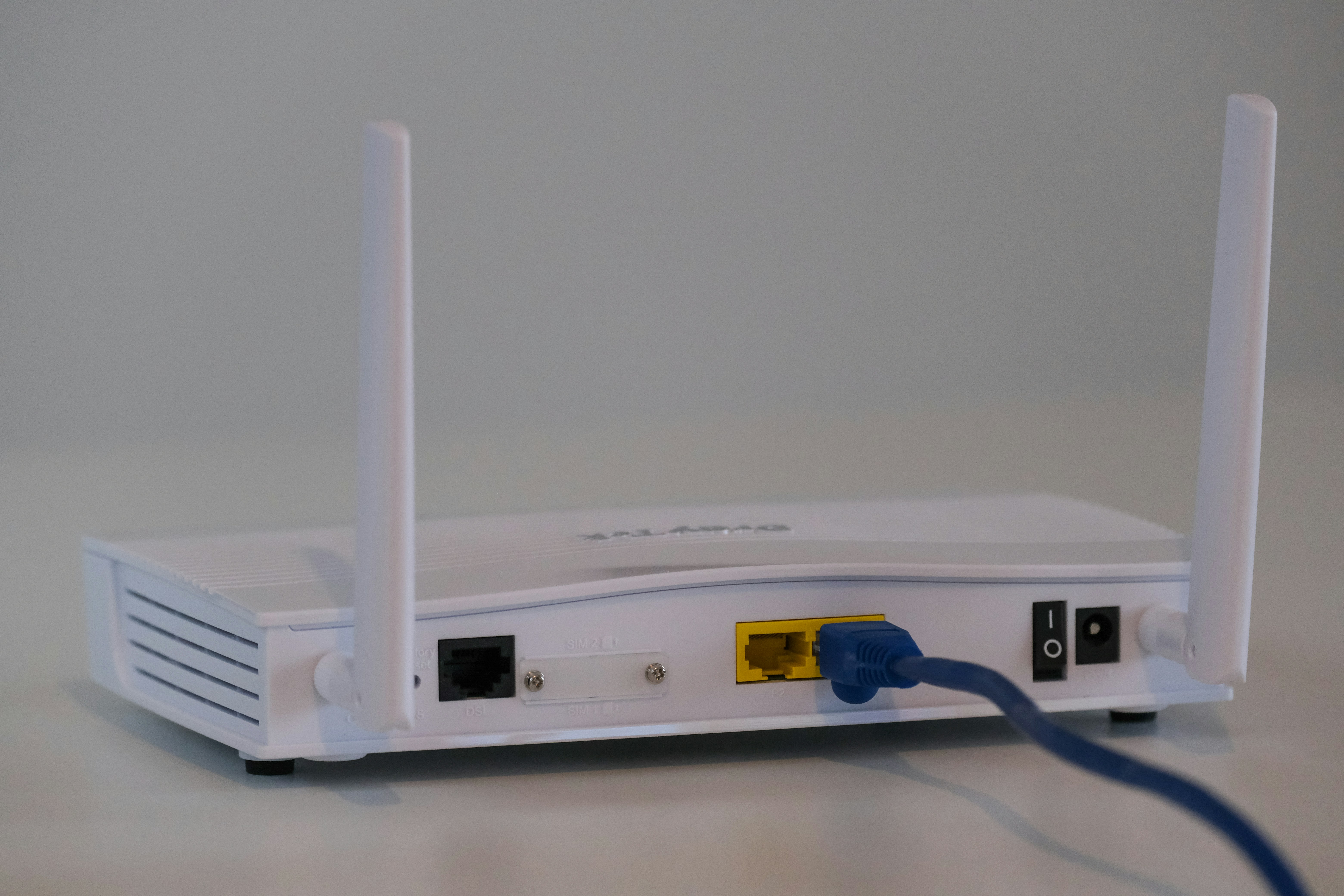
Le modem connecte votre maison à Internet via le câble ou la fibre entrant dans votre maison. Le routeur distribue cette connexion à vos appareils, généralement via Wi-Fi. La plupart des appareils fournis par le FAI combinent les deux fonctions dans un seul boîtier. Ces unités combinées sont pratiques mais fonctionnent généralement mal pour les deux fonctions.
Le chemin de mise à niveau : Achetez un modem et un routeur séparés. Un bon modem coûte 60-100 euros. Un bon routeur coûte 100-200 euros. Ensemble, ils surpasseront largement n’importe quelle unité combinée fournie par le FAI et se rentabiliseront en 1 à 2 ans de frais de location d’équipement évités (10-15 euros/mois). Vérifiez que le modem est compatible avec votre FAI avant d’acheter.
Systèmes mesh
Pour les maisons de plus de 140 mètres carrés ou avec plusieurs étages, un seul routeur peut ne pas offrir une couverture adéquate. Un système Wi-Fi mesh remplace le routeur unique par plusieurs nœuds placés dans toute la maison qui travaillent ensemble pour créer un réseau unique et transparent. Les systèmes mesh coûtent 150-500 euros selon le nombre de nœuds. Ils éliminent les zones mortes en répartissant les sources de signal dans toute la maison.
Quand un système mesh vaut le coup : Votre maison est grande, a plusieurs étages, ou a des pièces où le Wi-Fi échoue systématiquement. Si vous utilisez actuellement des répéteurs Wi-Fi (qui divisent votre débit par deux), un système mesh est une mise à niveau substantielle.
Quand il ne vaut pas le coup : Votre maison est assez petite pour qu’un seul bon routeur la couvre adéquatement. Un routeur bien placé au centre couvre un appartement typique ou une petite maison.
Placement du routeur
Le problème Wi-Fi le plus courant est un mauvais placement du routeur. Les signaux Wi-Fi sont des ondes radio qui se dégradent en traversant les murs, les sols, les meubles et les appareils électroménagers.
Le placement idéal : Central, surélevé (sur une étagère ou fixé au mur, pas par terre), et éloigné de : grands objets métalliques (réfrigérateurs, classeurs), eau (aquariums, chauffe-eau, radiateurs), miroirs, fours à micro-ondes (qui émettent des interférences à la même fréquence), et murs épais en béton ou en brique. Le routeur devrait être dans la pièce où vous utilisez le plus le Wi-Fi, pas coincé dans un coin du sous-sol ou un placard.
Si l’emplacement actuel de votre routeur est un placard, un coin de sous-sol ou derrière une télévision, le déplacer est la mise à niveau gratuite la plus impactante que vous puissiez faire.
Le choix 2,4 GHz vs 5 GHz
Les routeurs modernes émettent sur deux bandes de fréquence :
2,4 GHz : Plus lent mais plus longue portée. Traverse mieux les murs. Plus encombré car de nombreux appareils (Bluetooth, micro-ondes, babyphones) utilisent la même fréquence.
5 GHz : Plus rapide mais plus courte portée. Traverse moins bien les murs. Moins encombré.
La stratégie : Utilisez le 5 GHz pour les appareils proches du routeur (même pièce ou pièces adjacentes). Utilisez le 2,4 GHz pour les appareils éloignés du routeur ou derrière plusieurs murs. La plupart des routeurs modernes combinent les deux sous un seul nom de réseau et assignent automatiquement les appareils à la bande appropriée.
Encombrement des canaux
Dans les immeubles et les zones urbaines denses, les réseaux Wi-Fi voisins peuvent interférer les uns avec les autres. Les routeurs peuvent être configurés pour émettre sur différents canaux dans les bandes 2,4 GHz et 5 GHz. Si vous êtes dans une zone dense, la sélection « Auto » de votre routeur peut ne pas être optimale. Utilisez une application gratuite d’analyse Wi-Fi (WiFi Analyzer sur Android, AirPort Utility sur iPhone) pour voir quels canaux sont encombrés et passer manuellement à un canal moins occupé. C’est un ajustement unique qui peut améliorer significativement les performances dans les environnements denses.
Le filaire est toujours meilleur
La connexion la plus rapide et la plus fiable est toujours l’Ethernet filaire. Pour les appareils qui restent au même endroit — ordinateurs de bureau, consoles de jeu, téléviseurs connectés — faire passer un câble Ethernet directement depuis le routeur élimine totalement le Wi-Fi. Un câble Ethernet de 15 mètres coûte 10-15 euros. Pour les appareils qui ont besoin de stabilité filaire mais ne peuvent pas être facilement connectés directement, les adaptateurs CPL utilisent le câblage électrique de votre maison pour transmettre des données — moins fiable que l’Ethernet direct mais
plus stable que le Wi-Fi pour les appareils fixes.
Quand mettre à niveau votre forfait Internet
Après avoir optimisé votre réseau domestique, testez votre vitesse au modem en utilisant une connexion Ethernet filaire. Cela révèle ce que votre FAI fournit réellement. Si les vitesses filaires correspondent à ce pour quoi vous payez, le problème vient de votre réseau domestique, pas de votre FAI. Mettre à niveau votre forfait ne le résoudra pas. Si les vitesses filaires sont constamment inférieures à ce pour quoi vous payez, contactez votre FAI — le problème est de leur côté.
La plupart des problèmes Wi-Fi sont résolubles avec un meilleur placement de l’équipement, un meilleur équipement, ou les deux. Avant de payer pour un forfait plus rapide, optimisez ce que vous avez. Un routeur décent et bien placé offre une meilleure expérience qu’une connexion plus rapide distribuée par un équipement médiocre.